How to Send a Password Protected Email in Gmail — 2025 Guide
Learn the difference between Gmail Confidential Mode, true document password protection, and encrypted attachments. We review built-in tools, free methods, and secure software options.
By the Editorial TeamUpdated: October 202512 min read
Quick Answer
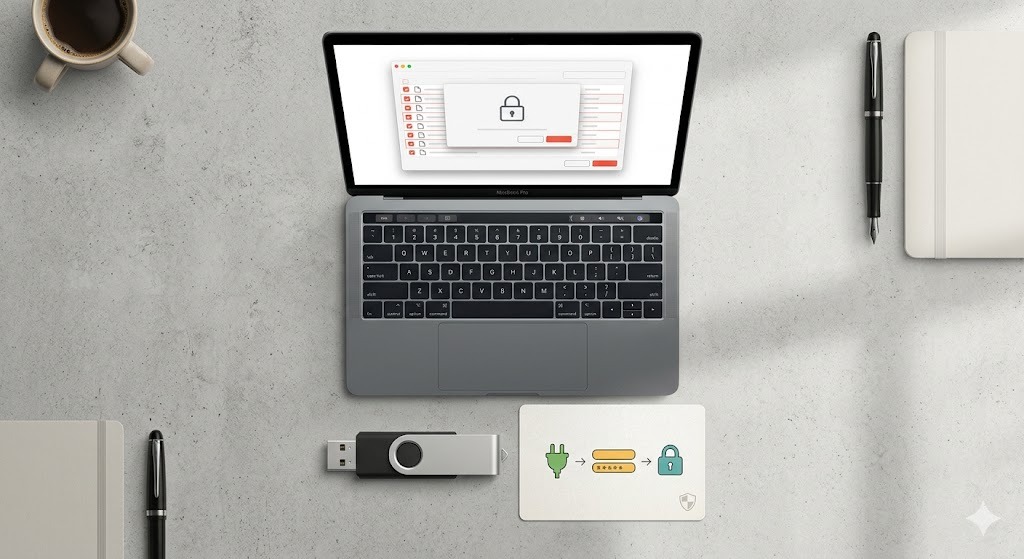
To send a password protected email in Gmail, you have two main options: enable Gmail Confidential Mode (which requires an SMS passcode to view the email body), or password-protect the document itself before attaching it (using Word/PDF built-in features or tools like Folder Lock). Confidential Mode secures the message text, but encrypting the attachment guarantees the file remains locked even if it is downloaded or forwarded.
Why How to Send a Password Protected Email in Gmail Is Not the Same as Full Encryption
When users search for ways to password protect an email in Gmail, they typically want to solve one of two distinct problems: securing the text of the email from unauthorized readers, or protecting the files attached to the email.
While Gmail offers native features, true document security relies on the file format, not just the email carrier. If you use Gmail's native secure modes, a recipient might still be able to copy the text or download the attachment. If you apply a password to the file itself, the security travels with the document, regardless of where it is saved.
Method 1: Gmail Confidential Mode — Is It Truly Secure?
Gmail Confidential Mode is Google's built-in feature to restrict what recipients can do with your email. You can set expiration dates, remove options to forward, copy, print, or download, and require an SMS passcode to open the email.
How to Enable Gmail Confidential Mode
Open Gmail and click Compose.
In the bottom toolbar of the compose window, click the padlock icon with a clock (Toggle confidential mode).
Set an expiration date (e.g., 1 day, 1 week, 5 years).
Under "Require passcode", choose SMS passcode. (If you choose "No SMS passcode", recipients using the Gmail app can open it directly).
Click Save and send your email.
Limitations to consider: Confidential mode is not end-to-end encryption. Google still has access to the email contents. Furthermore, it does not prevent a recipient from taking a screenshot or a photograph of their screen. It is an access control mechanism, not a cryptographic lock.
Method 2: How to Send a Password Protected Word Document in Gmail
If your goal is to protect an attachment, the best free method is to use Microsoft Office's native encryption before uploading the file to Gmail. This ensures that the file itself is encrypted with AES-256 standards.
Permissions Password vs Open Password — Explained
Open Password: The file cannot be opened or viewed without the password. The entire data structure is encrypted.
Permissions Password: Anyone can open and read the file, but a password is required to edit, print, or copy the content. (Note: Permissions passwords do not encrypt the document body).
Steps to Password Protect a File Before Emailing
Open your document in Microsoft Word.
Go to File > Info > Protect Document.
Select Encrypt with Password.
Enter a strong password. Confirm it.
Save the document. You can now attach this locked file to your Gmail message.
Password Strength — What Really Matters
A document password is only as secure as its complexity. Weak passwords on Word documents can be bypassed using brute-force tools in seconds. Test your intended document password below.
Enter a password to begin.
ACT II — THE RECOMMENDATION
The Tool We Recommend for Batch Document Protection
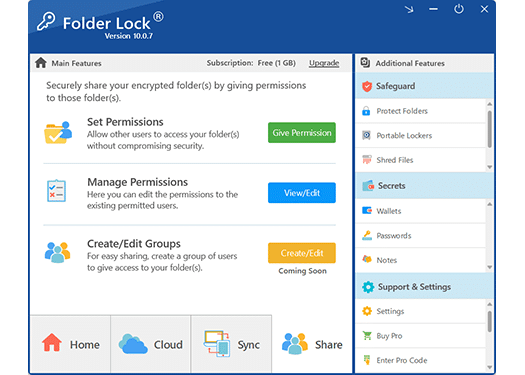
While native Word features work fine for a single file, they become tedious if you need to secure multiple PDFs, images, or entire folders before emailing them. For comprehensive protection, we recommend a dedicated desktop solution like Folder Lock.
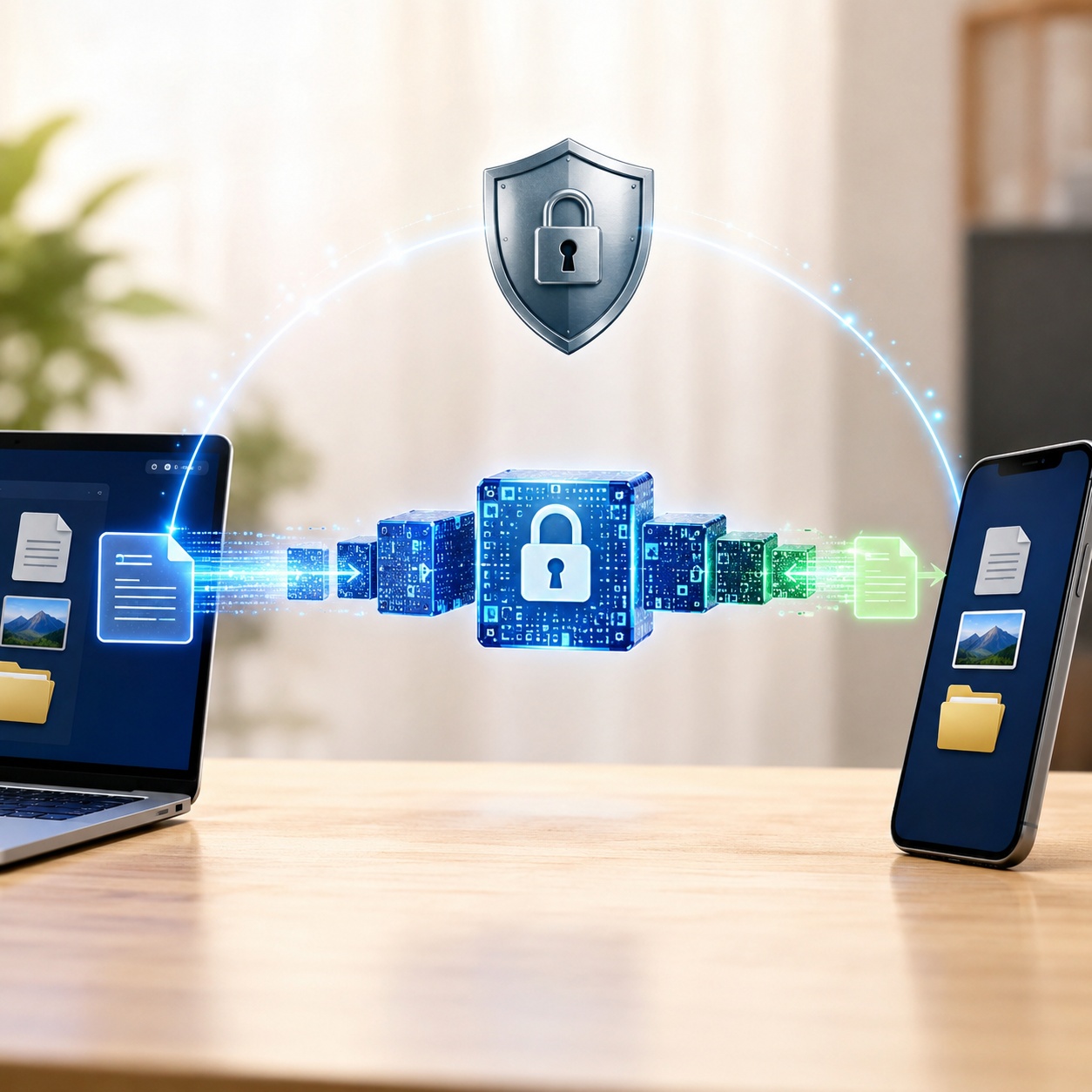
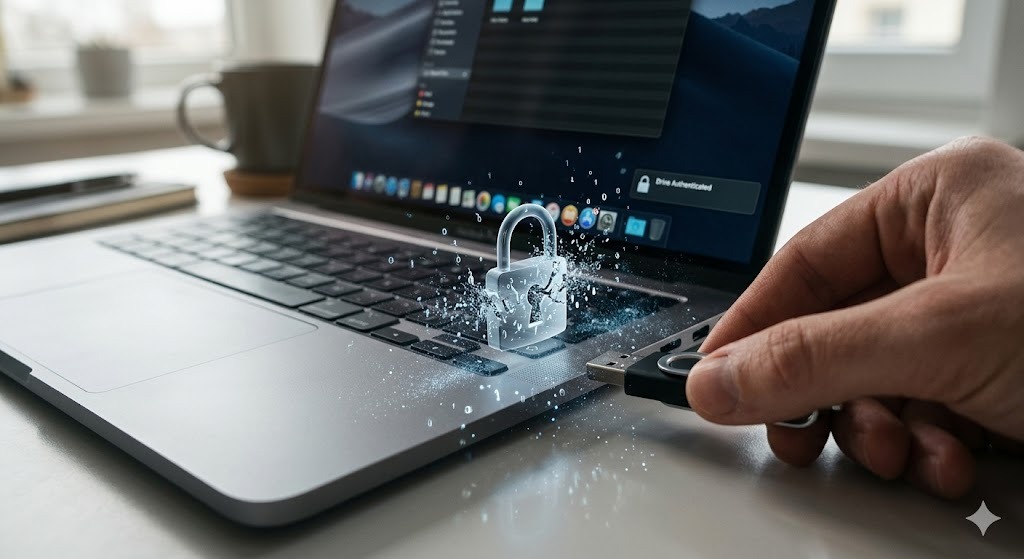
Instead of manually securing individual documents, this application features a specialized email utility that bundles any combination of files into a single, AES-256 encrypted ZIP archive. You simply generate the fortified archive on your machine and drag it into your Gmail compose window. Because the encryption happens locally before the file ever reaches your browser, your data remains shielded from third-party cloud servers, internet service providers, and unauthorized recipients.
AES-256 EncryptionDedicated Email ToolWindows, Mac & Mobile
Developed by NewSoftwares.net. Available for Windows, macOS, iOS, and Android.
Why Use Folder Lock Over Built-in Options?
If you regularly send sensitive information—such as financial documents, client records, or personal data—relying on Gmail's native tools leaves gaps in your security. Here is what dedicated software provides.
Folder Lock doesn't just hide files; it encrypts them using AES-256 military-grade standards. This is the same protocol used by governments to secure classified information. Once encrypted, the file cannot be brute-forced or bypassed by removing the extension.
While Microsoft Word can protect .docx files and Adobe can protect .pdfs, you need different workflows for each. Folder Lock can secure PDFs, Word files, Excel sheets, photos, and videos in a single unified encrypted container.
The software includes a dedicated module for electronic mail. It automatically compresses your selected confidential items into a fortified ZIP archive. You simply attach this generated archive to your Gmail draft, ensuring your payload is protected by a password before it travels across the internet.
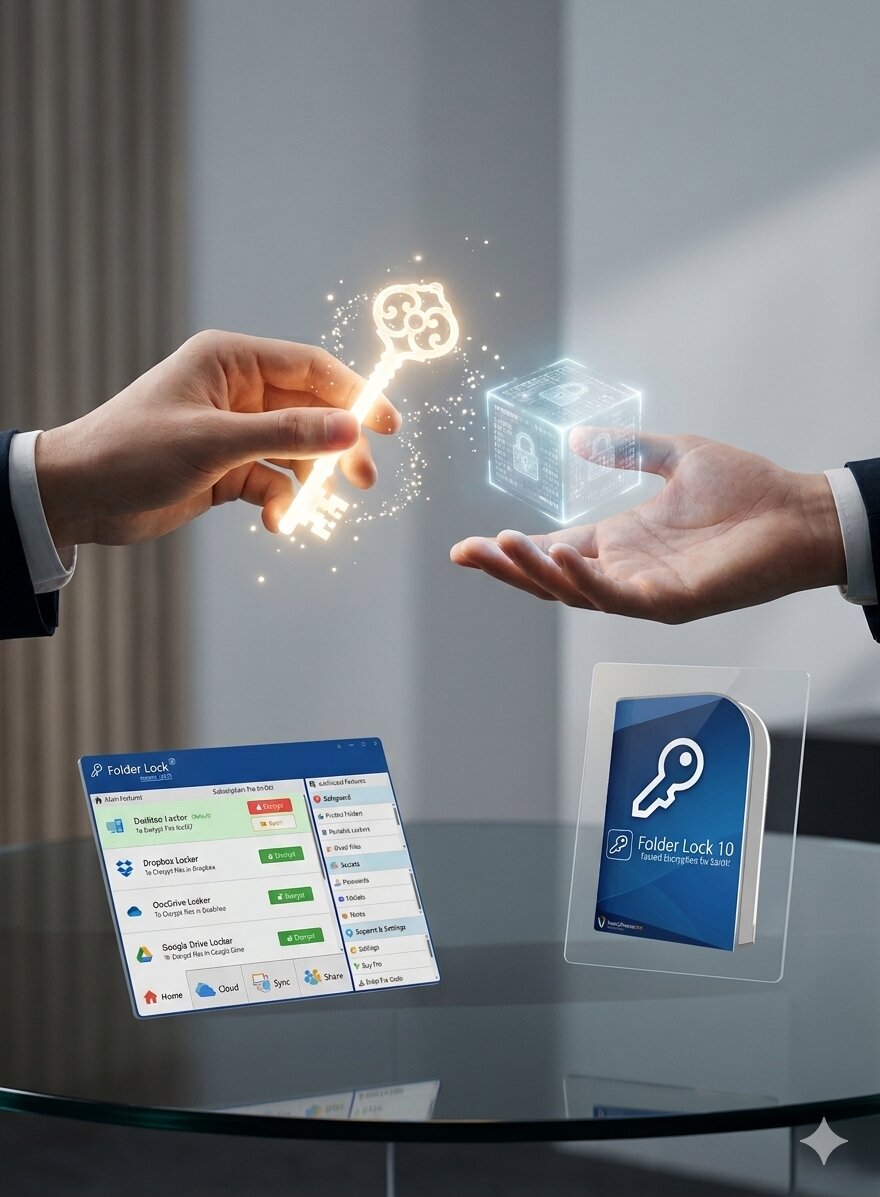
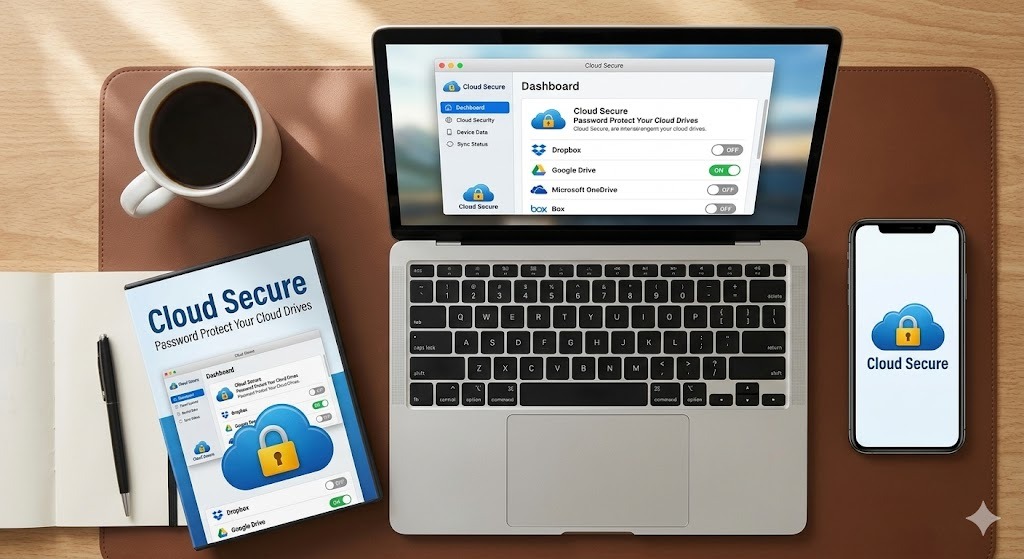
Gmail strictly limits attachments to 25MB. If you need to send massive video files or extensive financial databases, the software integrates with services like Google Drive and Dropbox. It encrypts your large files locally, syncs the locked data to the cloud, and allows you to grant access to specific individuals via cryptographic keys—meaning you do not even have to text them a password if they also use the application.
Unlike basic Windows-only utilities, the modern version of this security suite operates seamlessly across the Apple and Microsoft ecosystems. Whether your recipient is opening the protected attachment on a Windows workstation, a MacBook, an iPhone, or an Android tablet, they can successfully access the contents provided they have the correct credentials.
Head-to-Head: Document Security Methods
Security Feature
Gmail Confidential Mode
Native Office Tools
Folder Lock (3rd Party)
Security Strengths
Prevents forwarding email body
Yes
No
No
Encrypts the actual file
No
Yes
Yes (AES-256)
Stops recipient from downloading
Yes (for body/native attachments)
No
No
Usability & Support
Cross-Platform Recipient Access
Yes (Web/Mobile)
Needs MS Office
Yes (Win, Mac, iOS, Android)
Batch protect multiple file types
N/A
No
Yes
Overall Verdict
Best Used For...
Securing brief, text-based messages
Sending a single locked .docx file
Sending highly sensitive, mixed-file batches
How to Send Encrypted Files via Gmail Using Folder Lock
If you have decided that true file encryption is necessary, here is the exact process for securely preparing and sending an attachment via Gmail.
Launch the Email Tool: Open your security application and navigate to the portable protection features. Select the specific option designed for creating secure email attachments.
Select Your Payload: Browse your computer and add any combination of documents, photographs, or folders you wish to transmit. The software is format-agnostic, so you can mix and match file types.
Establish the Lock: Designate a location to save the output file and establish a robust, memorable passphrase. The system will then process your items into a single, heavily encrypted ZIP archive.
Upload to Gmail: Log into your web browser, initiate a new Gmail draft, and either click the paperclip icon or drag your newly minted, secure ZIP archive directly into the message window.
Transmit the Key Separately:Never include the passphrase within the body of the email. Communicate the unlock credentials to your recipient through an alternate, private channel, such as a phone call or a secure instant message.
"Couldn't be opened for import if the file is password protected try removing the password" (Google Sheets/Docs)
If you upload a password-protected Excel or Word file to Google Drive and attempt to open it in Google Sheets or Google Docs, you will receive an import error. Google's cloud editors cannot natively parse AES-encrypted Microsoft files. The Fix: The recipient must download the file to their local computer and open it using desktop software (like MS Excel or Word) to enter the password.
How to recover access to a locked folder you own
We see frequent queries like how to crack folder lock password or how to unlock folder lock if password forgotten. By design, true encryption software does not feature "backdoors." If you forget the master password to a locked archive, the data cannot simply be bypassed.
Owner-safe recovery steps: Check your password manager for saved credentials. If you are using enterprise software, check if your IT administrator retains recovery keys. For Folder Lock, ensure you have not backed up the password in a secure note elsewhere, as the AES-256 encryption is purposefully resilient against unauthorized credential-dumping or forced entry.
You can use Gmail Confidential Mode by clicking the lock/clock icon in the compose window and requiring an SMS passcode. Alternatively, you can password-protect the attachment itself using software before uploading it.
Is Gmail Confidential Mode end-to-end encrypted?
No. Gmail Confidential Mode secures the email in transit and restricts the recipient's actions, but Google still holds the encryption keys and can technically scan the email contents on their servers.
How to receive a Gmail Confidential email?
If you receive a confidential email, you will click a link to view it. If the sender required an SMS passcode, you will be prompted to send the code to your phone. Enter the code to view the message.
How to send a password-protected PDF via Gmail?
You must encrypt the PDF before emailing it. Open the PDF in Adobe Acrobat (or Mac Preview), go to the security settings, and add a document open password. Save the file, then attach it to your Gmail message as usual.
What is the difference between Gmail Confidential Mode and S/MIME?
Confidential Mode restricts access and forwarding via Google's servers. S/MIME (available in Google Workspace enterprise accounts) provides true cryptographic digital signatures and encryption between email clients, requiring certificates on both ends.
Can I batch password protect multiple documents?
Not natively in Word or PDF viewers. To batch protect files, you must use archive tools (like 7-Zip) or dedicated security software like Folder Lock to bundle the files into a single encrypted container.
How do I send protected files that exceed Gmail's 25MB limit?
Gmail prevents you from attaching files larger than 25MB directly. To securely send larger payloads, utilize a desktop security application to encrypt the files locally, synchronize that encrypted vault to a cloud provider like Google Drive, and then share access to that specific vault. This ensures the data remains unreadable on the cloud servers while bypassing email size restrictions.
Our Verdict
For quick, text-only messages, Gmail Confidential Mode is a convenient built-in tool. However, if you are sending sensitive attachments—especially financial, legal, or personal files—relying on email platform restrictions is insufficient.
For true security, encrypt the file before it ever touches your email client. Word's native tool works for single files, but for complete peace of mind and batch protection, a dedicated tool is the professional standard.